Attendance Setup
Why should I use this form?
This form helps in managing calendar details such as Calendar name, description. These calendars are later used to define Holidays/Weekly-off and map employees to the relevant calendar. You can use this form to record/update Calendar details.
What are the Pre-requisites?
NA
Who can access this form?
This form shall be visible to all employees to whom the visibility is given in Setup HRMS ® Module Role Mapping/ Module Administration.
How to navigate to this form?
HR Foundation à Setup Adrenalin à Calendar Master.
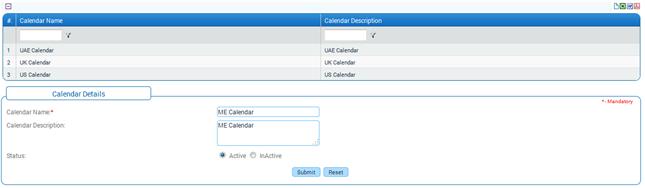
1. Enter Calendar Name and Calendar Description.
Click [Submit] to save the Calendar.
Click [Reset] to refresh the form.
To Modify any Calendar, select the Calendar from the grid. Selected Calendar will be populated in the form. Make necessary changes and click [Submit] to save the changes.
Note: If the calendar is not in use then the status can be changed to In-Active.
Why should I use this form?
Use this form to map calendars to a specific OU/Location/Grade/Region. In Employee Creation form and Employment Details form, the calendar will be retrieved based on the mapping done here. Similarly, in Employment Details and Employee Transfer form, when OU or Grade or Location is changed for an employee, and if Calendar mapping is found for the combination, the Calendar drop down field will select the mapped calendar by default. Otherwise, no calendars will be selected by default.
In Leave form, the weekly-off and holiday entries are posted based on the calendar which is mapped to the employee.
In the adrenalin scheduler, whenever there is a change in employee’s OU/Grade/Location/Region, then the calendar gets updated automatically.
Note: Calendar mapping can be done based on “IS_NEW_CAL” configuration parameter. If the value of this parameter is set as ‘Y’, then system allows mapping of Calendar to OU/Location/Region/Region. If it is set as ‘N’, then system does not allow mapping of Calendar.
What are the Pre-requisites?
OU, Location, Grade and Region should be available.
Who can access this form?
This form shall be visible to all employees to whom the visibility is given in Setup HRMS ® Module Role Mapping/ Module Administration.
How to navigate to this form?
HR Foundation àSetup Adrenalin à Calendar Mapping.
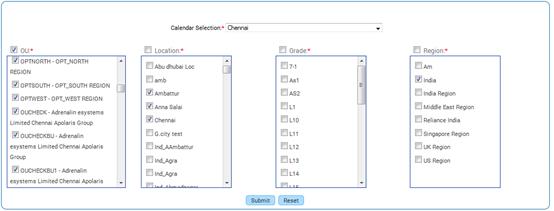
Select Calendar from the drop down list. List of all the active Calendars from Calendar master (HR Foundation à Setup Adrenalin à Calendar Master) will be displayed here.
Select OU, Location, Grade, and Region to which the selected calendar will be applicable.
|
A combination of Location, Grade, OU and Region once mapped to a calendar, cannot be mapped to another calendar. |
Click [Submit] to save the details.
Clicking [Reset] will refresh the form.
Why should I use this form?
This form helps in managing Holiday details such as Holiday date, holiday description, holiday reason, etc. Holiday lists can thus be maintained for different regions or countries if the holidays differ.
You can use this form to record/update holiday details.
What are the Pre-requisites?
Data should be available in Calendar Master.
Calendar should be defined and active.
Who can access this form?
This form shall be visible to all employees to whom the visibility is given in Setup HRMS ® Module Role Mapping/ Module Administration.
How to navigate to this form?
HR Foundation à Setup Adrenalin à Holiday Master.
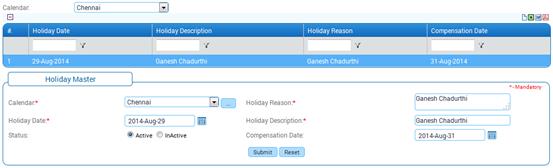
1. Select Calendar from the drop-down list. All the Active Calendars will be displayed in the drop-down.
2. Select the Holiday Date.
3. Enter Holiday Description and Holiday reason.
4. Select the Compensation Date. This helps in capturing any unplanned holiday which is declared/will be declared in the office, which needs to be compensated.
Note: If the compensate date is a weekly-off date, then the weekly-off process does not create a weekly-off entry for that day.
Click [Submit] to save the changes.
Click [Reset] to refresh the form.
Post Activity
To modify any record, select the record from the grid. Selected Holiday will be populated in the form. Make necessary changes and click [Submit] to save the changes.
Note: If the use of a holiday is being discontinued then change the status to In-Active. Take care to remap employees belonging to the in-active holidays in the employment record.
Why should I use this form?
This form helps in managing weekly-off details. Weekly-off is defined as the days in the week, which will be considered as the weekly-off.
Use this form in accordance with your corporate policies.
What are the Pre-requisites?
Data should be available in Calendar Master.
Who can access this form?
This form shall be visible to all employees to whom the visibility is given in Setup HRMS ® Module Role Mapping/ Module Administration.
How to navigate to this form?
HR Foundation à Setup Adrenalin à Weekly Off Master.
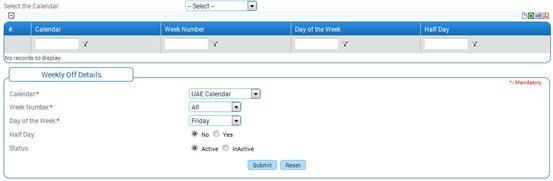
1. Select Calendar from the drop-down list. All the Active Calendars will be listed in the drop-down.
2. Select Week Number from the drop down.
· First Week – first week of a month
· Second week – second week of a month
· Third week – third week of a month
· Fourth week – fourth week of a month
· All – represents selected day in all the weeks.
3. Select Day of the Week that needs to be marked as a weekly-off day. For example, if ‘Saturday’ is selected here and the Week Number is selected as ‘Second Week’, this means that second week’s Saturday will be a weekly-off day.
4. Select whether Half day is required or not. It helps in defining half day weekly off. For example, if you want to set half day weekly off for Saturday, then select ‘Day of the Week’ as ‘Saturday’ and select ‘Yes’, in this Half Day field.
Click [Submit] to save the details.
Click [Reset] to refresh the form.
Post Activity
To modify any record, select the record from the grid. Selected Weekly-off will be populated in the form. Make necessary changes and click [Submit] to save the changes.
Note: If the use of a weekly-off is being discontinued then change the status to Inactive. Take care to remap employees belonging to the in-active weekly-offs in the employment record.
The shift master helps you in setting up various shifts within an organisation.
What are the Pre-requisites?
N/A
Who can access this form?
This form shall be visible to all employees to whom the visibility is given in Setup HRMS ® Module Role Mapping/ Module Administration.
How to navigate to this form?
Workforce Administration à Shift & Scheduling à Shift Master.
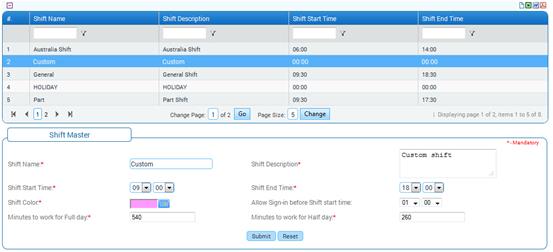
All the existing shifts are listed in the grid. Use the filter section to filter records in the grid based on some condition.
Click the [+] icon on the left top of the grid to show/hide the grid.
The field guidelines are as follows:
Field Name |
Description |
Shift Name |
Enter Name of the Shift. Note: It accepts alpha numeric & special character. The width of this field is limited to 50. |
Shift Description |
Enter Description of the Shift. Note: It accepts alpha numeric & special character. The width of this field is limited to 100. |
Shift Start Time |
Select the Time when the shift starts. |
Shift End Time |
Select the Time when the shift ends. |
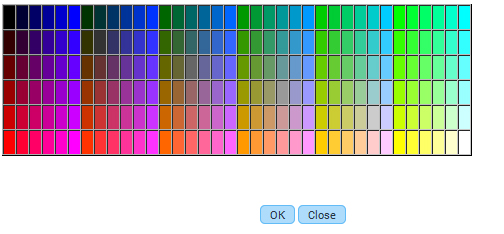
Shift Color |
Click the Color
palette [
Click on a color and click [OK] to choose the selected color for the project. |
Allow Sign-in before Shift start time |
Select the time which will be the grace period for the employees to sign-in their attendance. For example, if the shift time starts at 9 AM and the Sign-in Grace period is given as 15 minutes, then the employees can start signing-in from 8:45 AM onwards, which will be considered as current date’s attendance. If the employee signs-in before 8:45 AM, then it will be considered in previous day’s attendance. |
Minutes to work Full Day |
Enter Minutes to work, for full day present. Employee's attendance will be marked as 'Present' for full day based on the minutes entered here. For example, if 540 minutes is entered here, the employee's attendance will be marked as 'Present' for the whole day only if the employee's sign-in and sign-out duration is equal or greater than 540 minutes. |
Minutes to work Half day |
Employee's attendance will be marked as 'Present' for half-day based on the minutes entered here. For example, if 180 minutes is entered here, the employee's attendance will be marked as 'Present' for the half day, if the employee's sign-in and sign-out duration is equal or greater than 180 minutes and less than the full-day minimum minutes to present. |
Click [Submit] to save the details.
Routing and Approval
Upon submission, it will be sent for approval based on the workflow settings.
Once approved, the active user-defined shifts will be available in Shift Group Master, Group Roster, Adhoc Roster, Change Request and Exception Shift Roster forms.

 ] to select a color for
the shift. On clicking this button, the color picker pop up window
appears:
] to select a color for
the shift. On clicking this button, the color picker pop up window
appears: